Chats: requests, response time, and additional features
How a chat starts, why a response time is set, and all the features available in the chat — from voice messages to chat backgrounds.

 October 5, 2026 · 3 min read
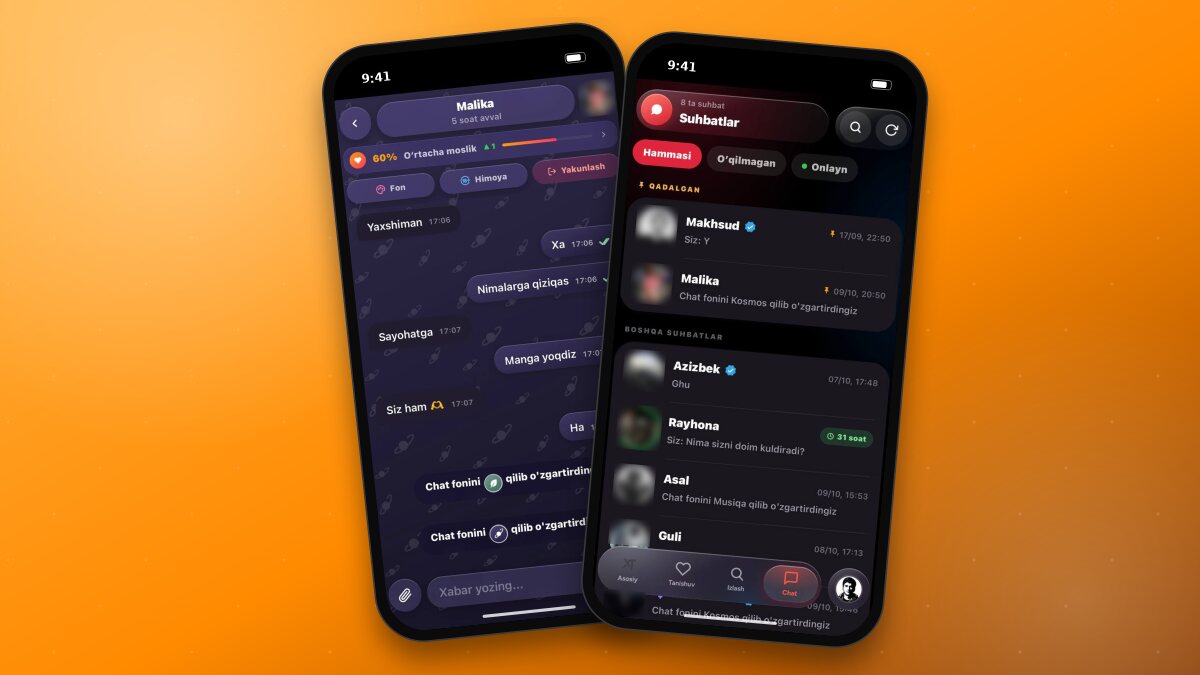
The Chat section in the bottom menu brings together all your messages, incoming requests, and their status.
Chat Screen
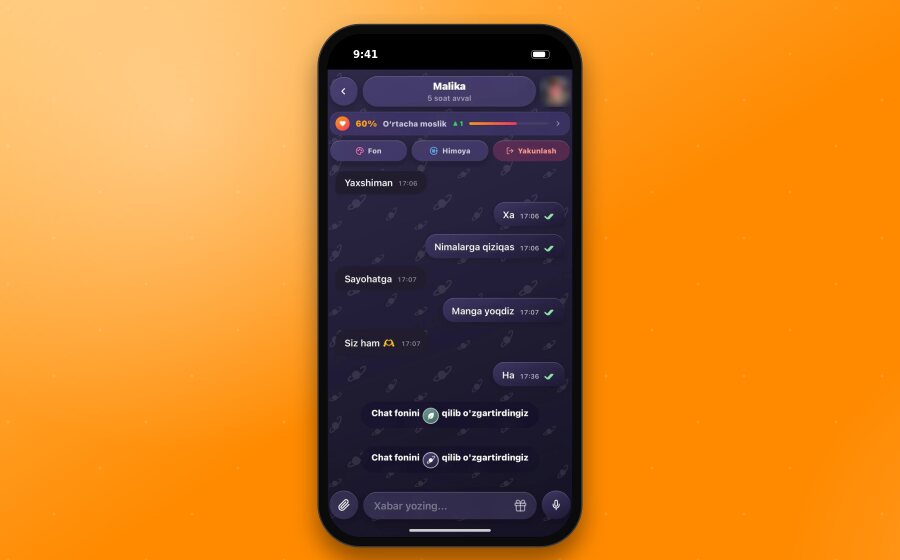
The top part of the chat screen contains the following:
Companion's name and status - for example, “online” or “5 hours ago”. You can open their profile via the avatar on the right.
Compatibility indicator - the percentage and level of compatibility with your chat companion (for example, “60% Average match”). The indicator changes based on activity in the chat; tapping it opens detailed information.
“Fill”, “Protection”, and “Finish” buttons.
The messaging field is located at the bottom: the image attachment button is on the left, the gift icon is inside the field, and the voice message button is on the right.
Starting a Chat
To message a user, a chat request is sent first. Once the request is accepted, the chat opens and a message reading “Chat started with the consent of both sides” appears. Free users can start up to 10 new chats per day.
XPlus members can message instantly without a request; there is no limit on new chats for them.
Response Time
For chats started without a request, a response time limit is set: if the companion does not reply within 24 hours, the chat will close. This prevents unanswered chats from piling up. For chats started by an XPlus member, the time limit is 48 hours and can be extended if needed.
The remaining time is shown by the ring around the companion's avatar. As soon as a reply is received, the ring disappears and the chat continues without limits.
Good to knowResponse time limits do not apply to chats started by accepting a request.
Chat Features
Text, image, and voice messages. Press and hold the microphone button to record a voice message; swipe left to cancel.
Reply and edit. Swipe left on a message to reply to it. You can edit your own message; edited messages are marked with a pencil icon.
Gift. You can gift XPlus to your chat companion using the gift icon in the messaging field.
18+ protection. You can configure media and text protection specifically for this chat using the “Protection” button in the chat header.
Chat background. You can set a background for the chat using the “Fill” button in the header (XPlus).
Chat List
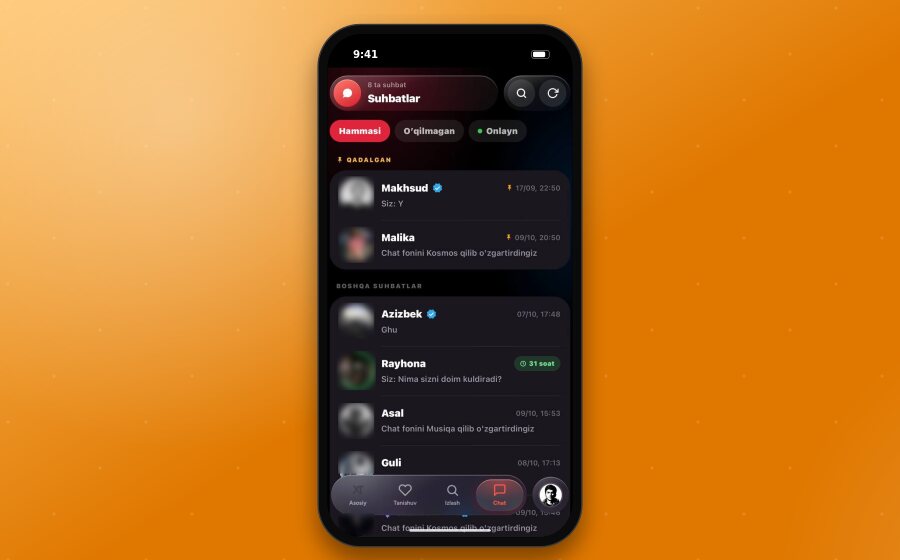
At the top of the list, you'll find the total number of chats along with search and refresh buttons. Chats are divided into two sections: “Pinned” and “Other chats”. Each row displays the companion's name, the last message, and its timestamp. For chats subject to a response time limit, a ring and the remaining time (e.g., “31 hours”) appear around the avatar.
Filter. At the top of the list: All, Unread, Online.
Pin. Swipe left on a chat and tap the “Pin” button — it will move to the “Pinned” section at the top of the list. Free users can pin up to 2 chats, while XPlus members can pin up to 10.
Delete. Swipe left on a chat and use the “Delete” button.
TipSound effects for sending and receiving messages can be enabled in Profile → Notifications → Chat sounds.
Finishing a Chat
You can close the chat using the “Finish” button in the chat header. If necessary, you can also block the user or report them.