News: Ghost Mode – Stay invisible for a while
Online status, "Who viewed you", "read", and "typing…" – hide everything with a single tap. How to turn it on, how long it lasts, and what is not hidden.

 October 25, 2026 · 4 min read
Sometimes you want to open the app, browse profiles, or read messages – but right now you don't want anyone to see you Online, show up in the “Who viewed you” list, or have the “read” receipt force you to reply. That's why the new Ghost Mode has been added to the app.
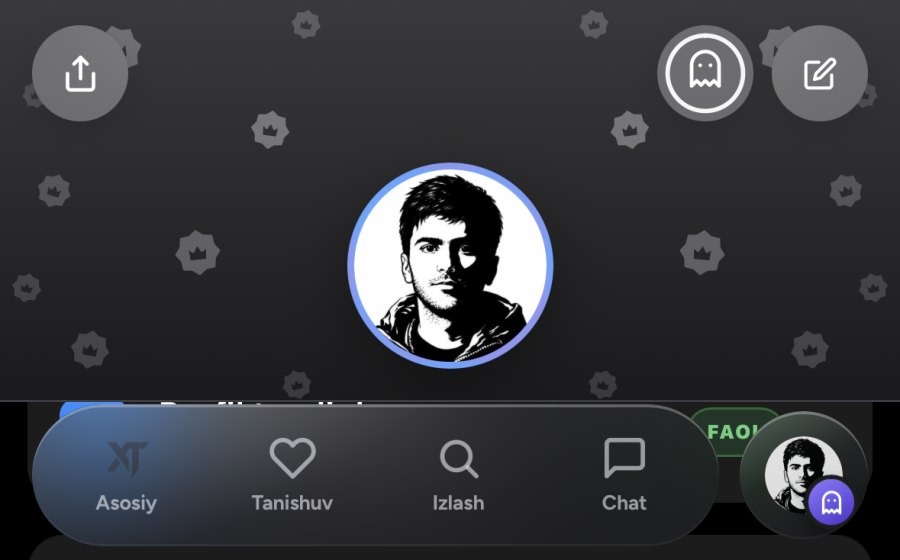
What changes when Ghost Mode is on
You are not shown as Online. Your “Online” status disappears immediately, and your “last seen” time freezes at the moment Ghost Mode was turned on. You won't appear in the Radar's “Online” mode either.
You browse without a trace. If you open someone's profile, you won't appear in that person's “Who viewed you” list.
No “read” receipts. Read messages at your leisure – your chat partner will still see them as unread.
No “typing…” indicator. Nobody will notice that you are typing a reply.
Good to knowThere is one rule: if you send a reply in a chat, the messages in that specific chat will be marked as read. It's impossible for someone to receive your reply without the message being marked as read. Other chats will remain hidden.
How to turn it on
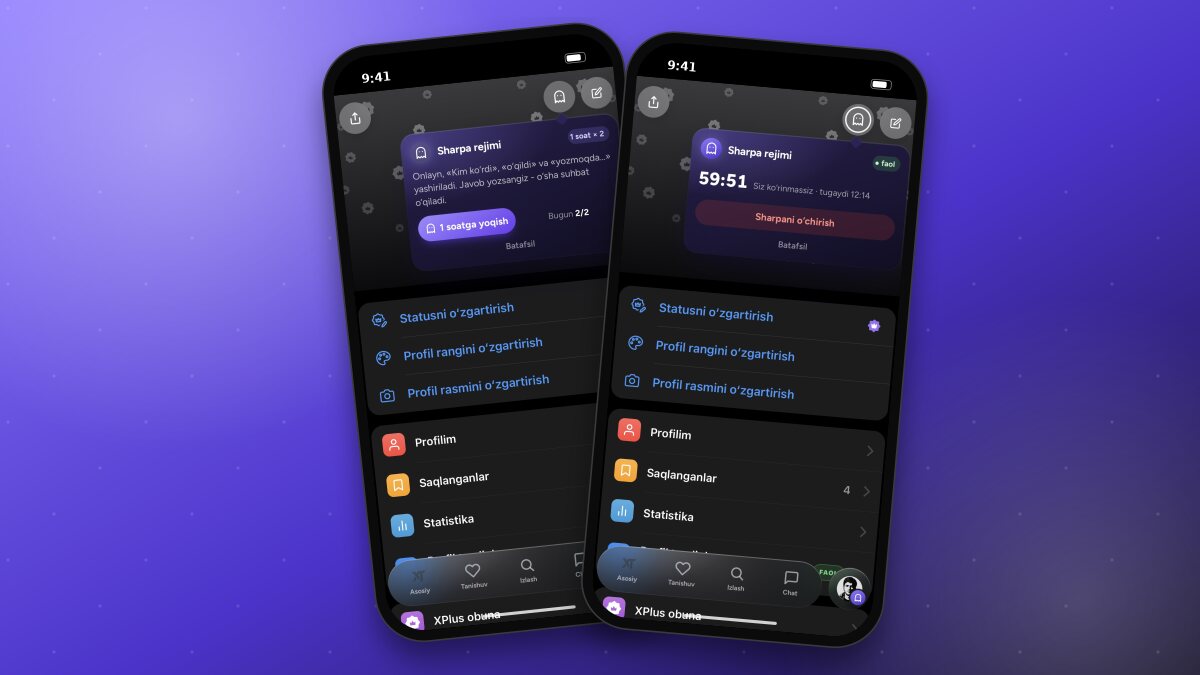
Ghost button is located in two places: at the top right corner of the profile menu (next to “Edit”) and in the header of the Chats list.
Tap – Ghost Mode turns on immediately and a short notification pops up: “Ghost Mode on · 1 hour · 1 left today”.
Press and hold – a small card opens under the button showing what gets hidden, your remaining sessions, and the “Turn on for 1 hour” button. This card will also appear the very first time you tap it.
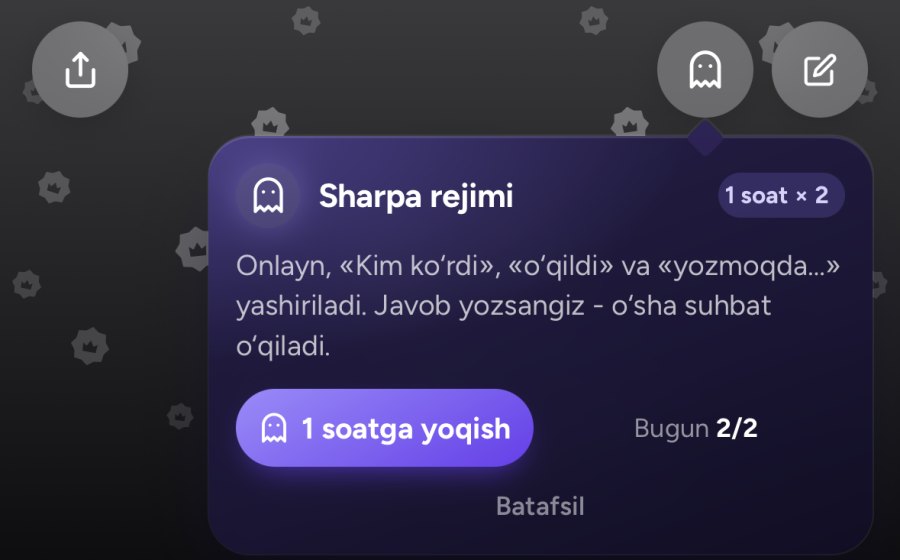
Remaining time and turning it off
While Ghost Mode is active, the button turns purple, and the white ring around it shrinks like a clock hand based on the remaining time. A small ghost appears next to your profile picture in the bottom menu – no matter which section of the app you're in, you will instantly see your status.
To turn off Ghost Mode early, tap the button again and confirm. When the time expires, Ghost Mode turns off automatically and you will appear normal again.
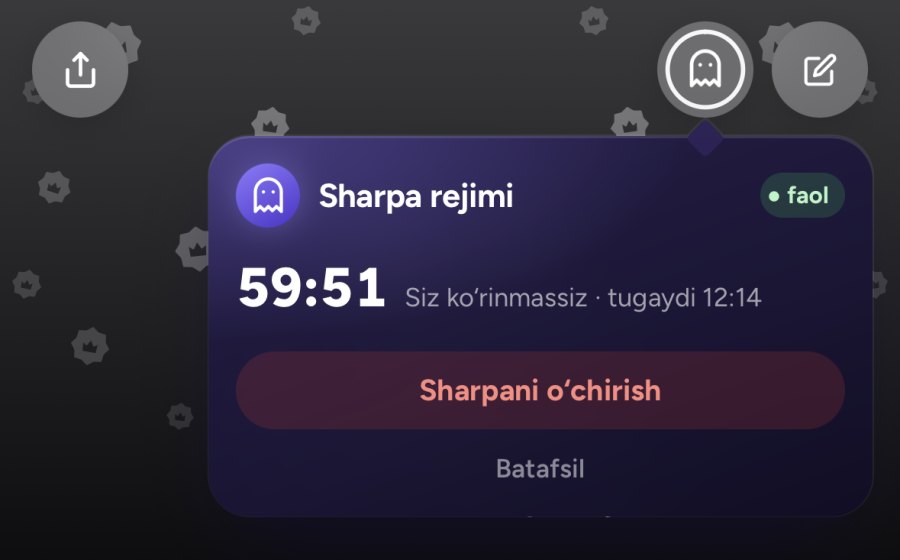
ImportantA session turned off ahead of time cannot be restored – it still counts against your daily sessions.
For whom and how much
XPlus members can turn on Ghost Mode 2 times a day, for 1 hour each time. Sessions reset every day at midnight.
Free users get a 10-minute trial once a week to try out the feature for themselves.
If today's sessions are used up, tapping the ghost button will show a small label next to it: a live countdown showing how much time is left until new sessions become available.
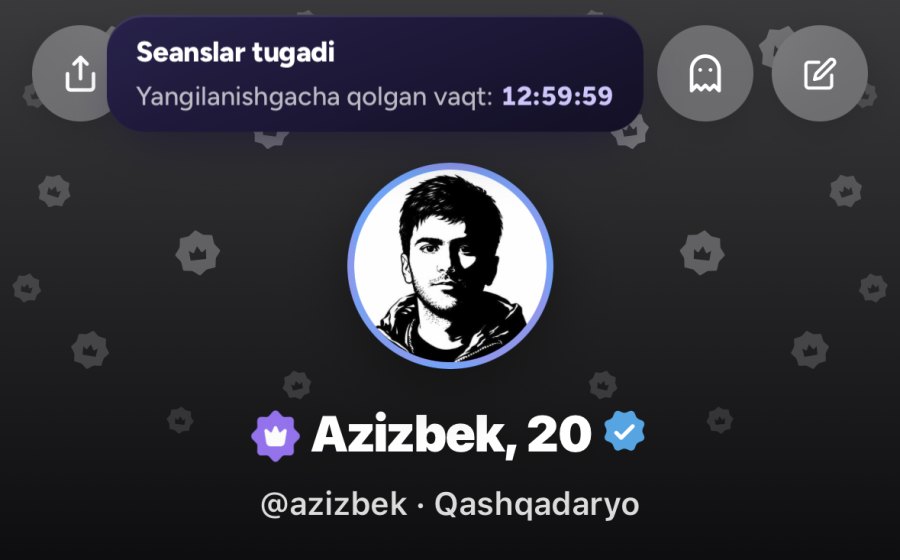
TipTurn on Ghost Mode right when you need it: for example, on a busy evening with lots of messages so you can read them in peace. One hour is usually more than enough for this.
What is not hidden
Ghost Mode makes you invisible, but it doesn't hide your actions. If you like someone, send a chat request, or write a message – that person will see it as usual. Ghost Mode only prevents others from noticing that you are browsing.
Frequently asked questions
Can others tell if Ghost Mode is on? No. To others, it will simply look like you haven't opened the app for a while.
Will messages written while Ghost Mode is on be marked as read later? Not automatically. They will be marked as read when you open the chat after Ghost Mode ends.
How is this different from “Hide online status”? That only hides the online badge and works permanently. Ghost Mode is temporary and more powerful: online status, profile views, “read”, and “typing…” – it hides everything together.
Good to knowRead about all XPlus features in the XPlus: all benefits in one place article.